Airport profiles
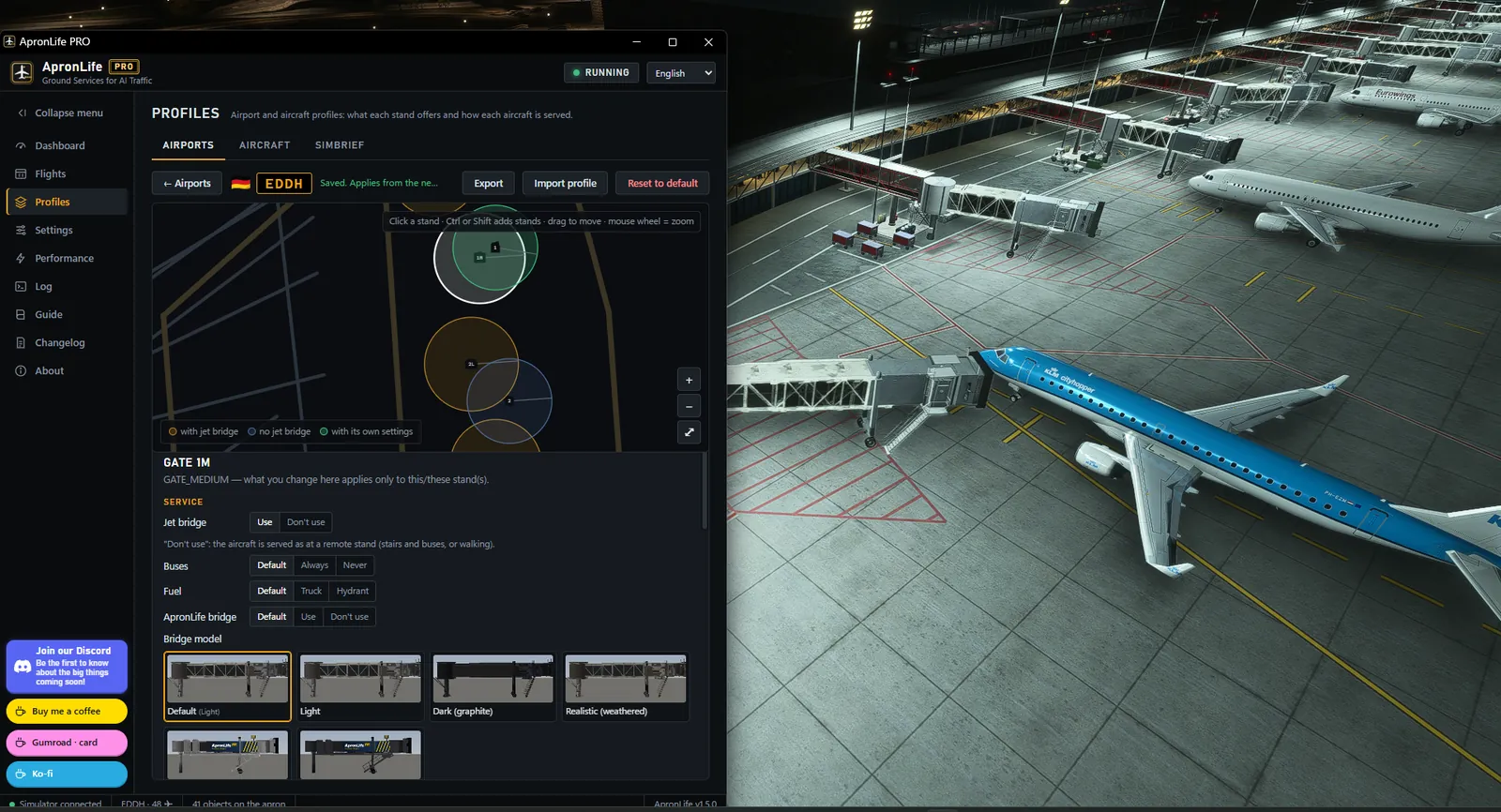
The airport map with all its stands. Pick one or several and choose the jet bridge, buses, truck or hydrant fuel, which services happen and which of your vehicles serves each one. Works with the simulator closed.

ApronLife PRO makes the apron follow real life. Each parked aircraft gets its real departure time: the turnaround ends at the actual pushback, and aircraft that are not leaving yet stay quiet with just the GPU.
One-time purchase · no subscription · updates included
The real panel inside the simulator, with example data. Try the four tabs and click an aircraft.
Watch it
A few minutes at a real airport, with every aircraft on its own schedule.
 Play the video
In the simulator
Everything here was captured in Microsoft Flight Simulator with ApronLife running on AI traffic.

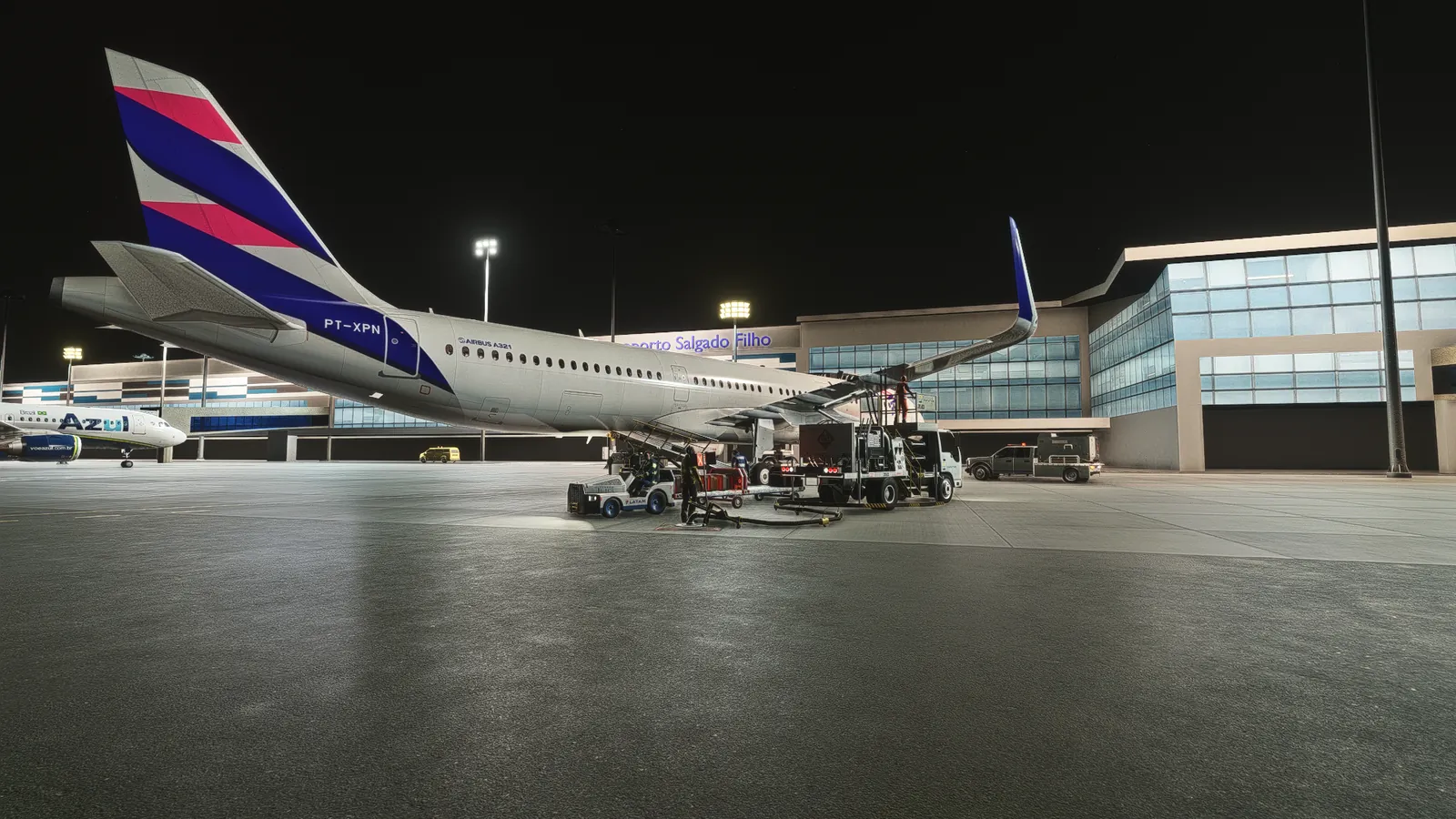
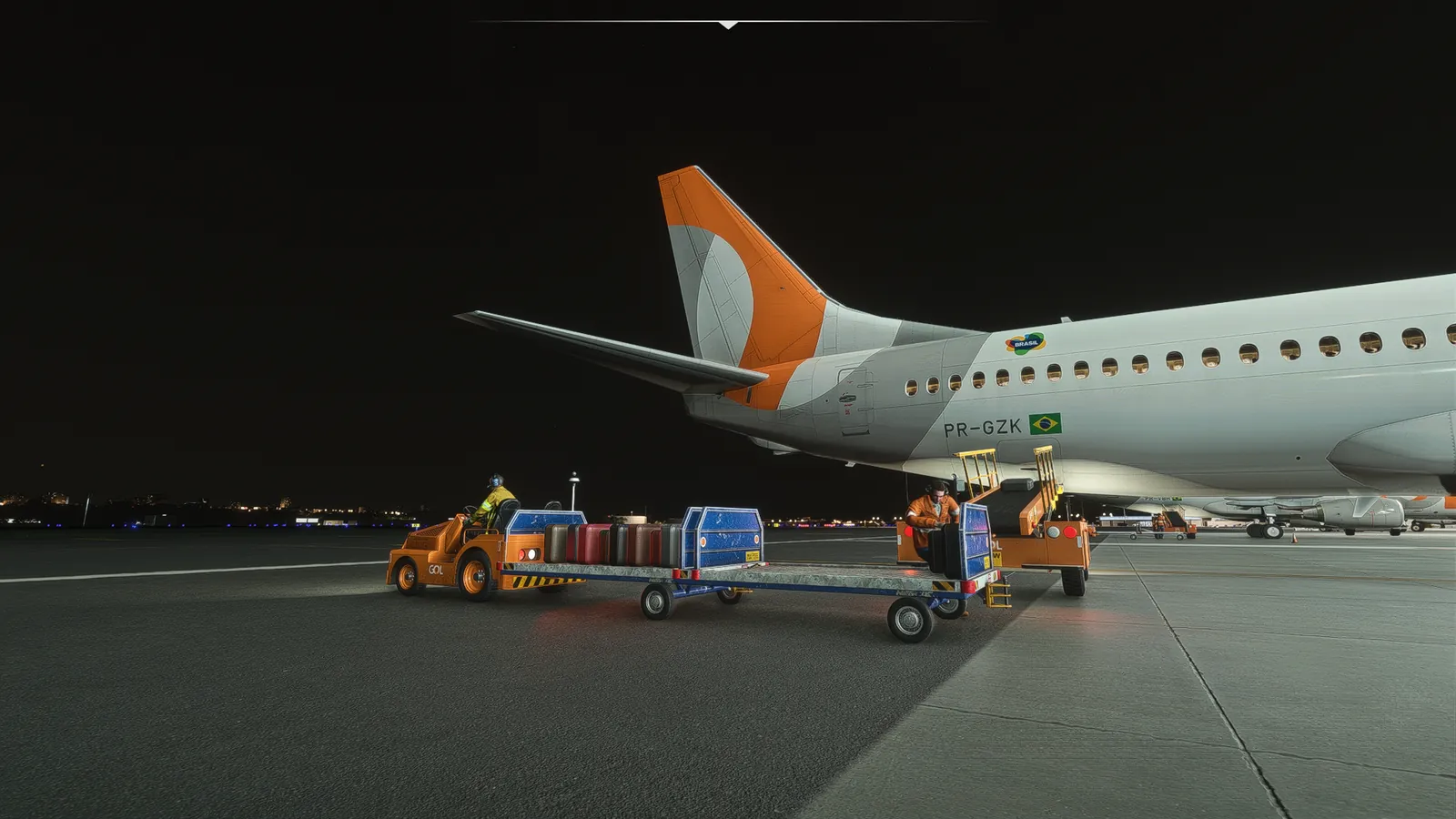
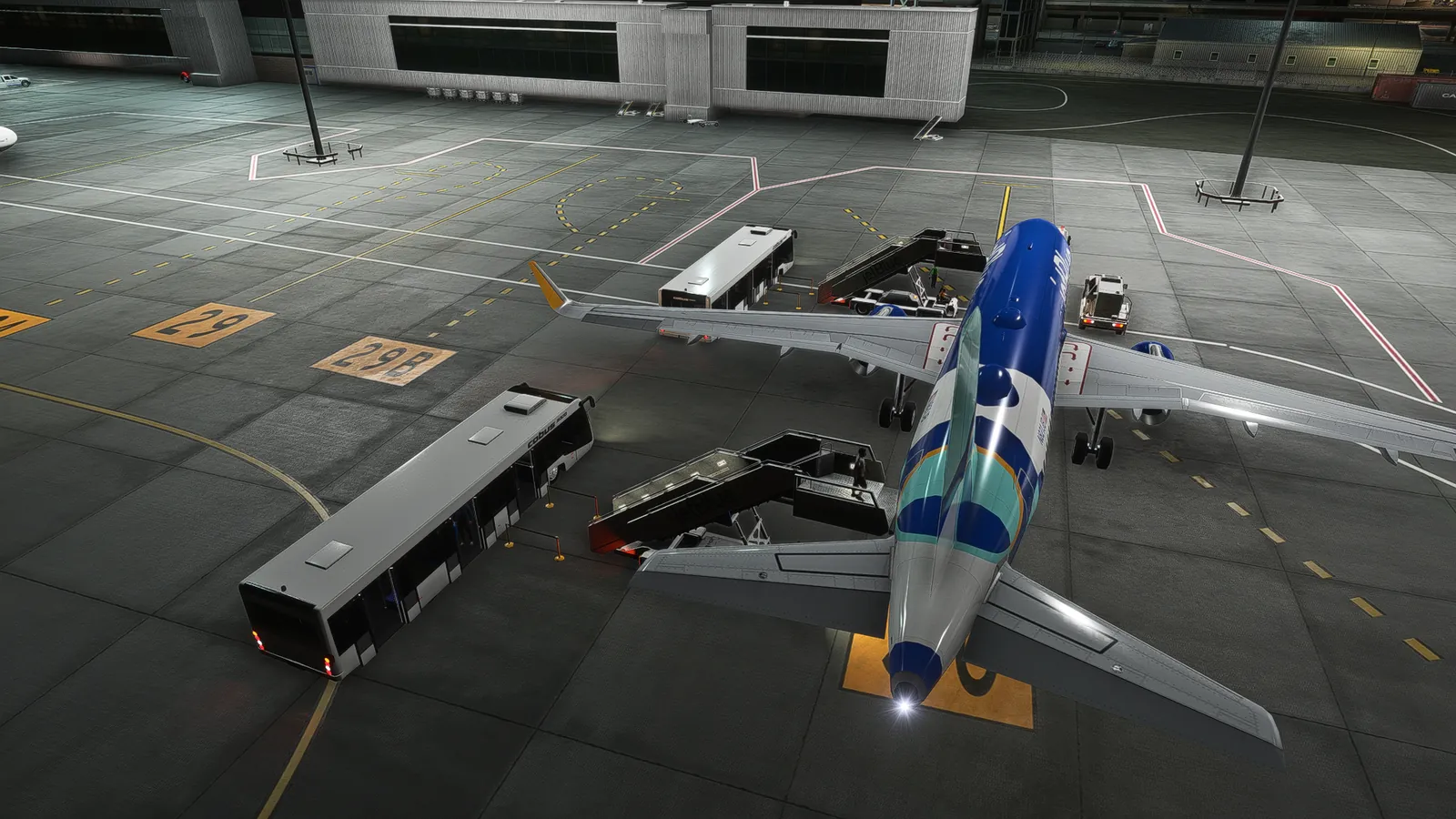

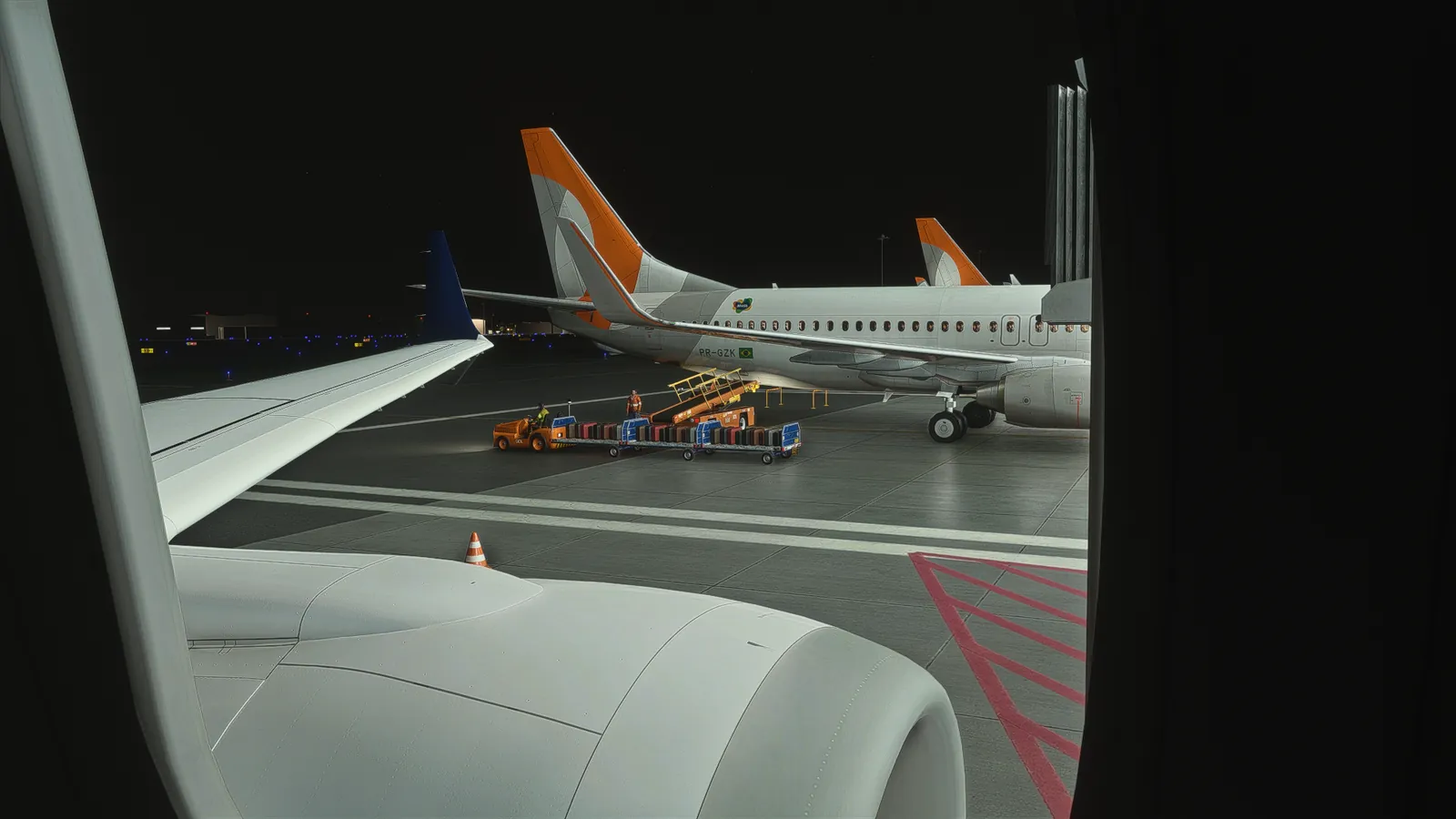
Real Schedule
Each aircraft is served on the timing of its real flight, so the busiest moments happen when the real airport is busiest. An aircraft that just landed is served until the pushback of its next flight.
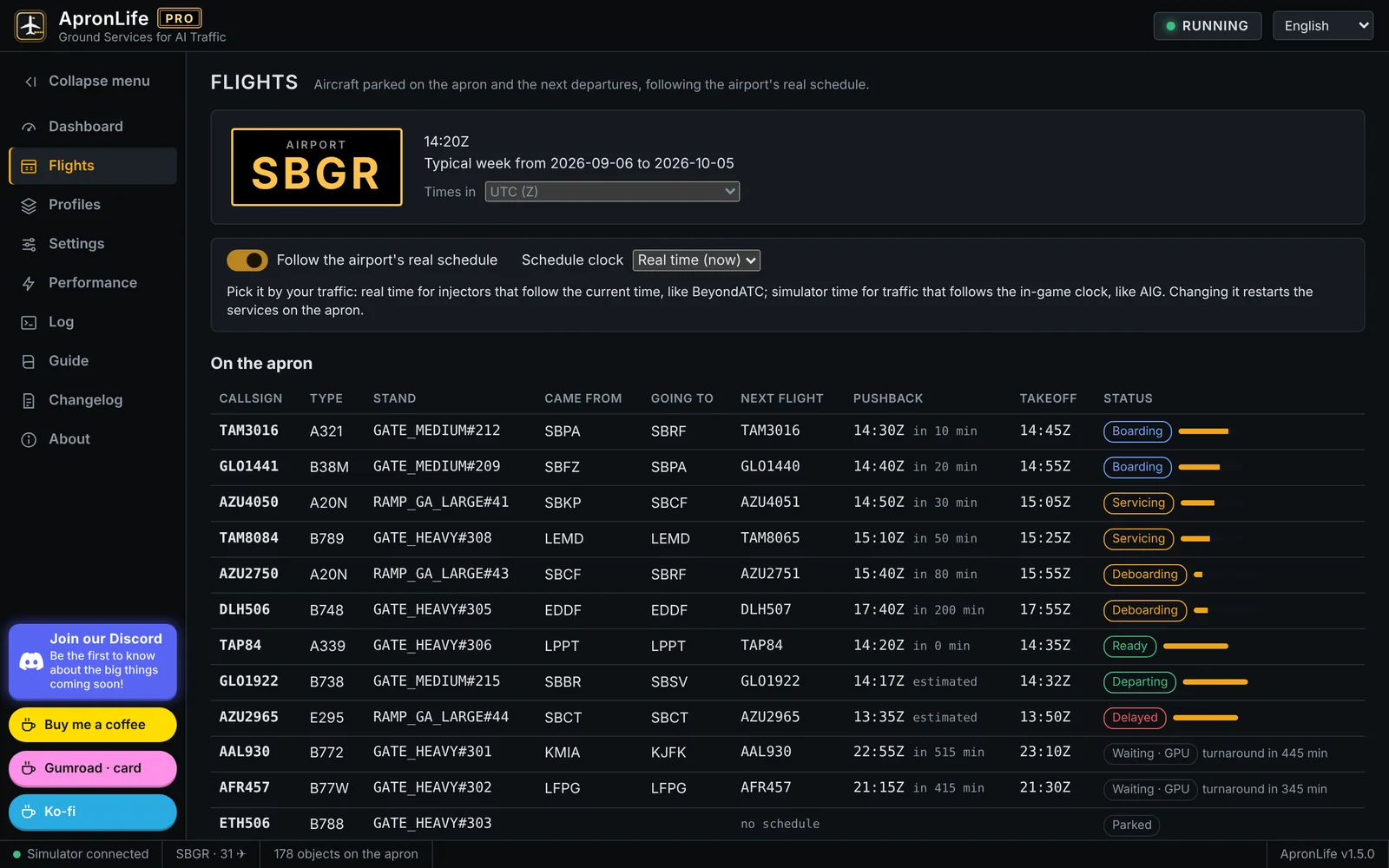
Flights tab
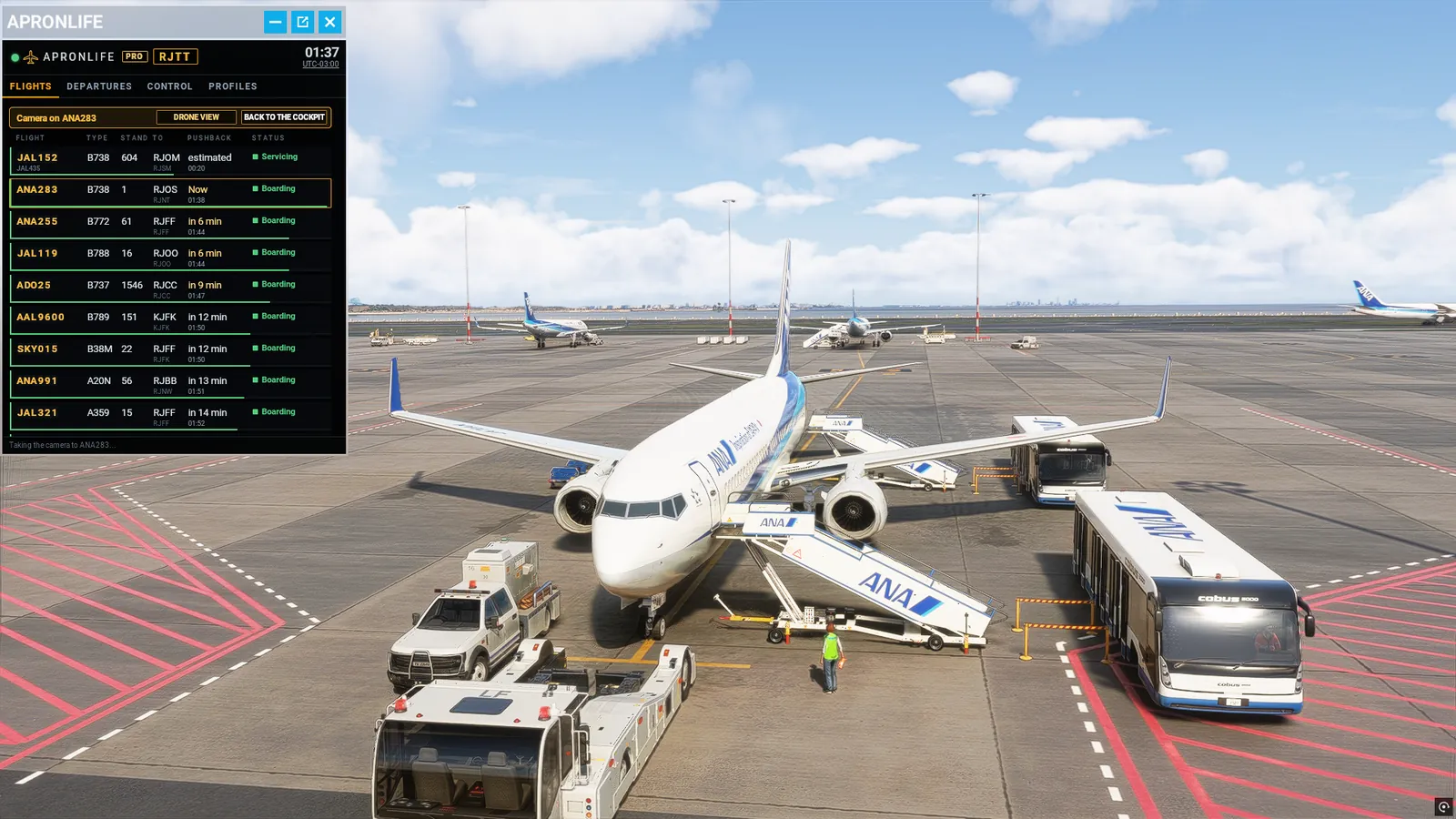
See every aircraft on your apron at a glance: flight, type, stand, where it came from and where it goes next, its next flight, how many minutes to pushback and what is happening right now. Below, the departures of the next three hours.
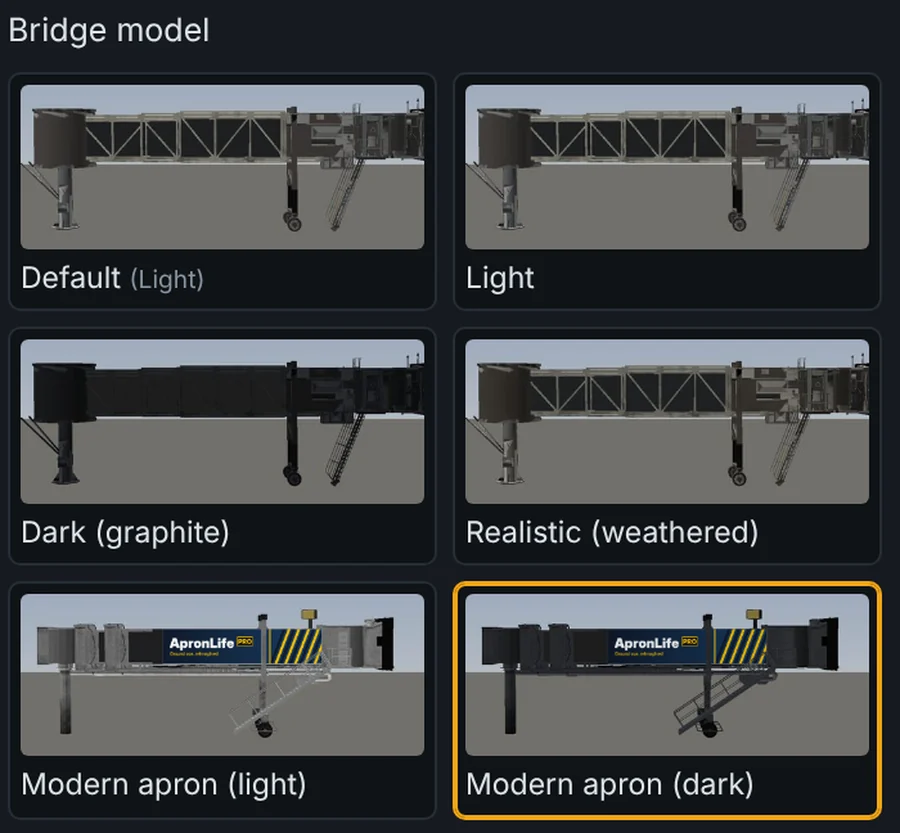
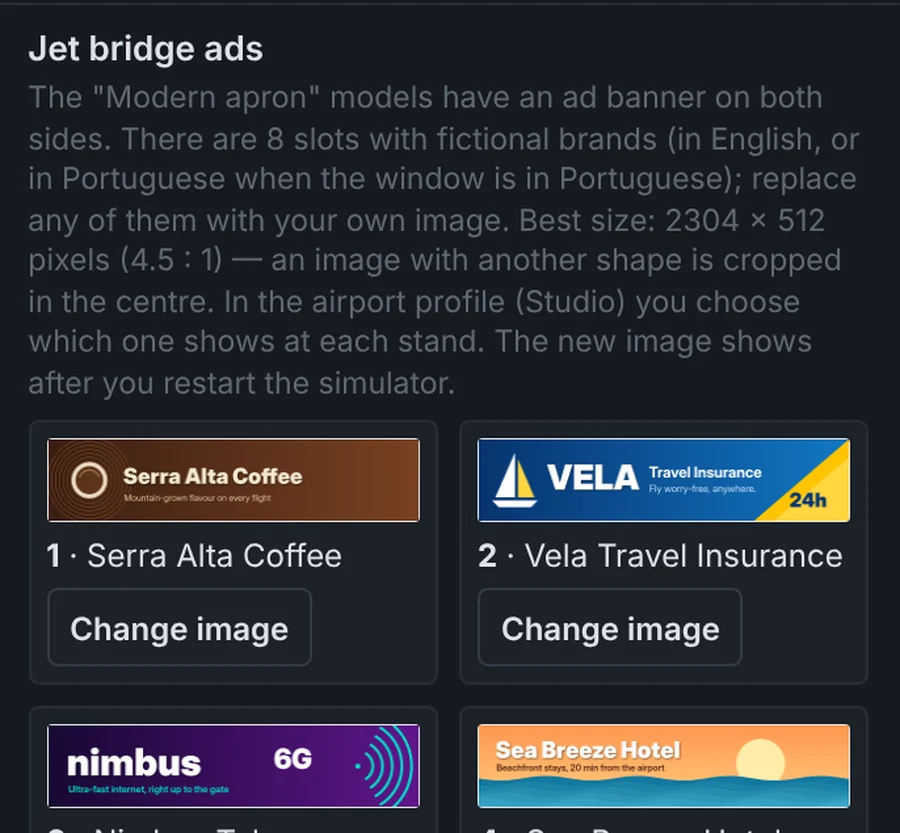
New · ApronLife jet bridges
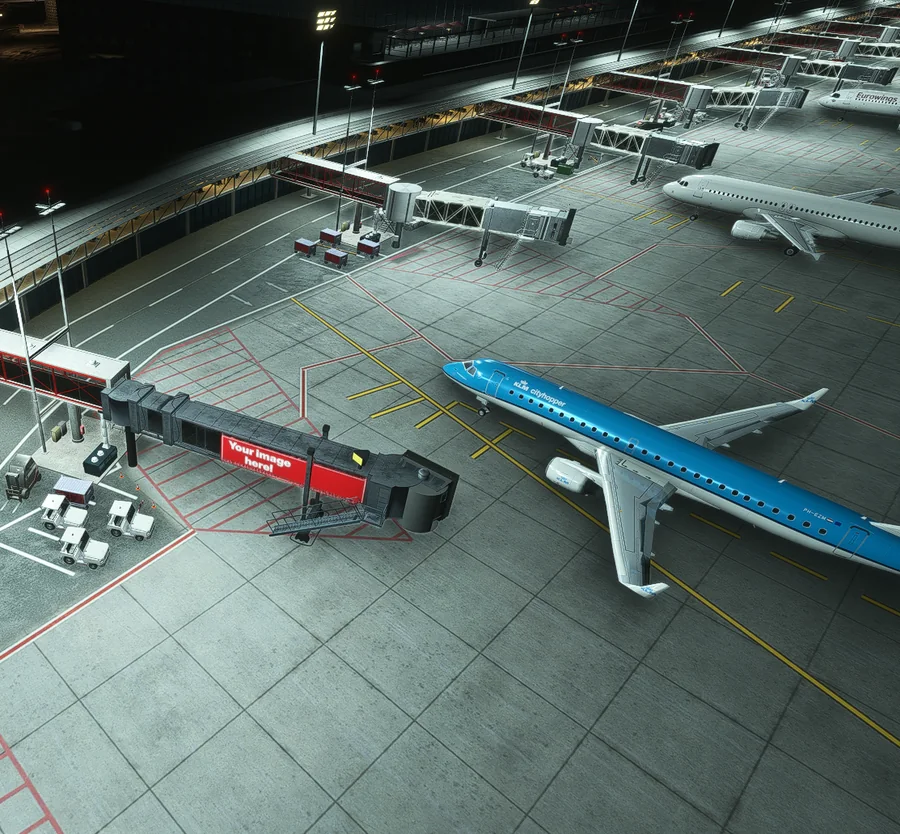
Do your jet bridges miss the door, or drift out of place when you fly the drone camera around the airport? Don’t worry: at ApronLife we built our own jet bridges for you.
Note: for now, ApronLife jet bridges are not available in MSFS 2020 due to an incompatibility that is still being tested. They already work in MSFS 2024.
Panel in the simulator
In MSFS 2024 and MSFS 2020, ApronLife PRO adds a button to the simulator toolbar. From there you see your flights, start or stop the service, re-dock the bridges, switch between light, medium and full, turn on bubble mode and edit your profiles. ApronLife starts from that button, just like GSX.
Profile Studio
Set it once, in the ApronLife window or right in the simulator panel. The profiles are saved as you go and used from the next turnaround.
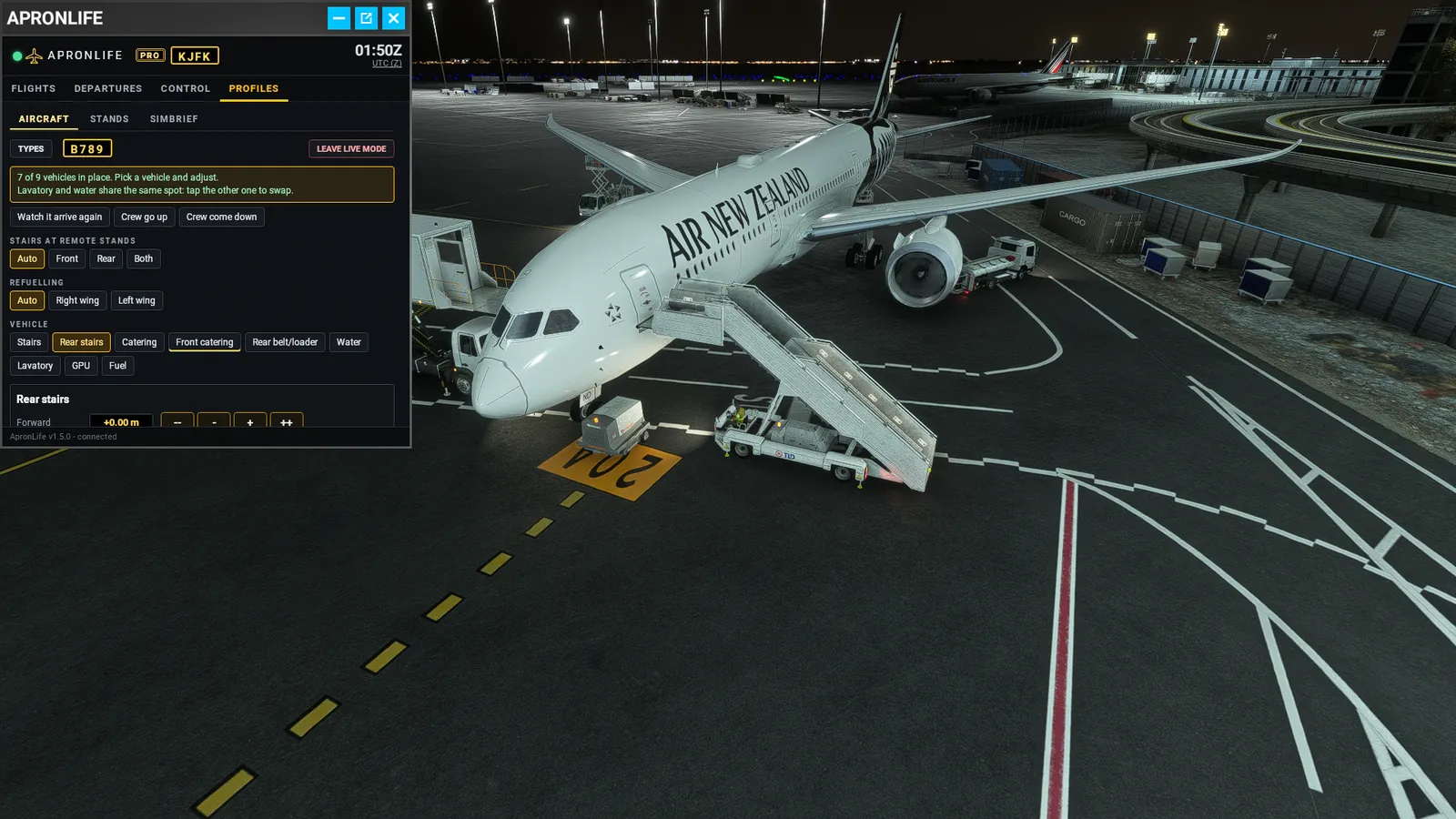
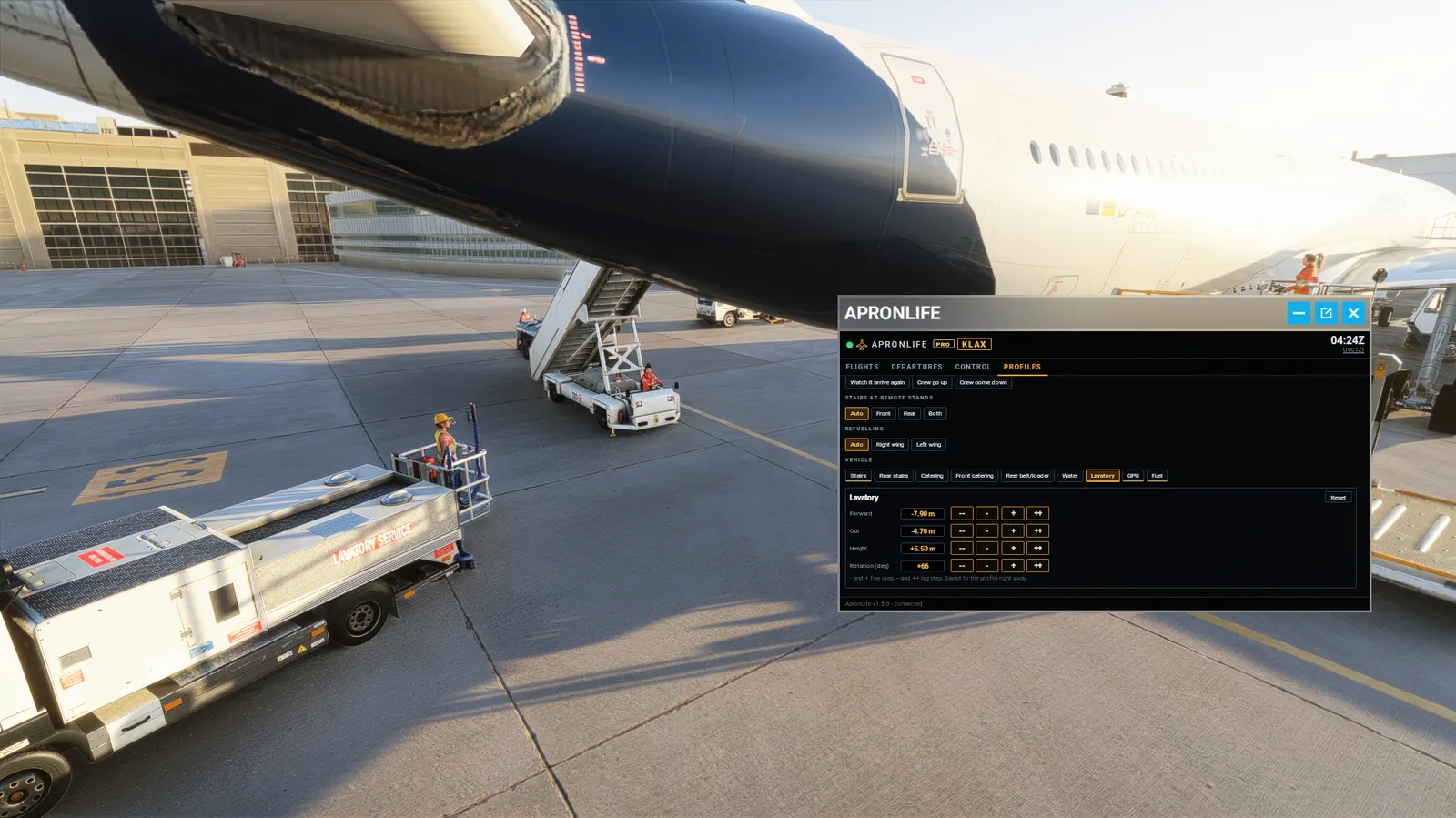
Profiles in the simulator panel
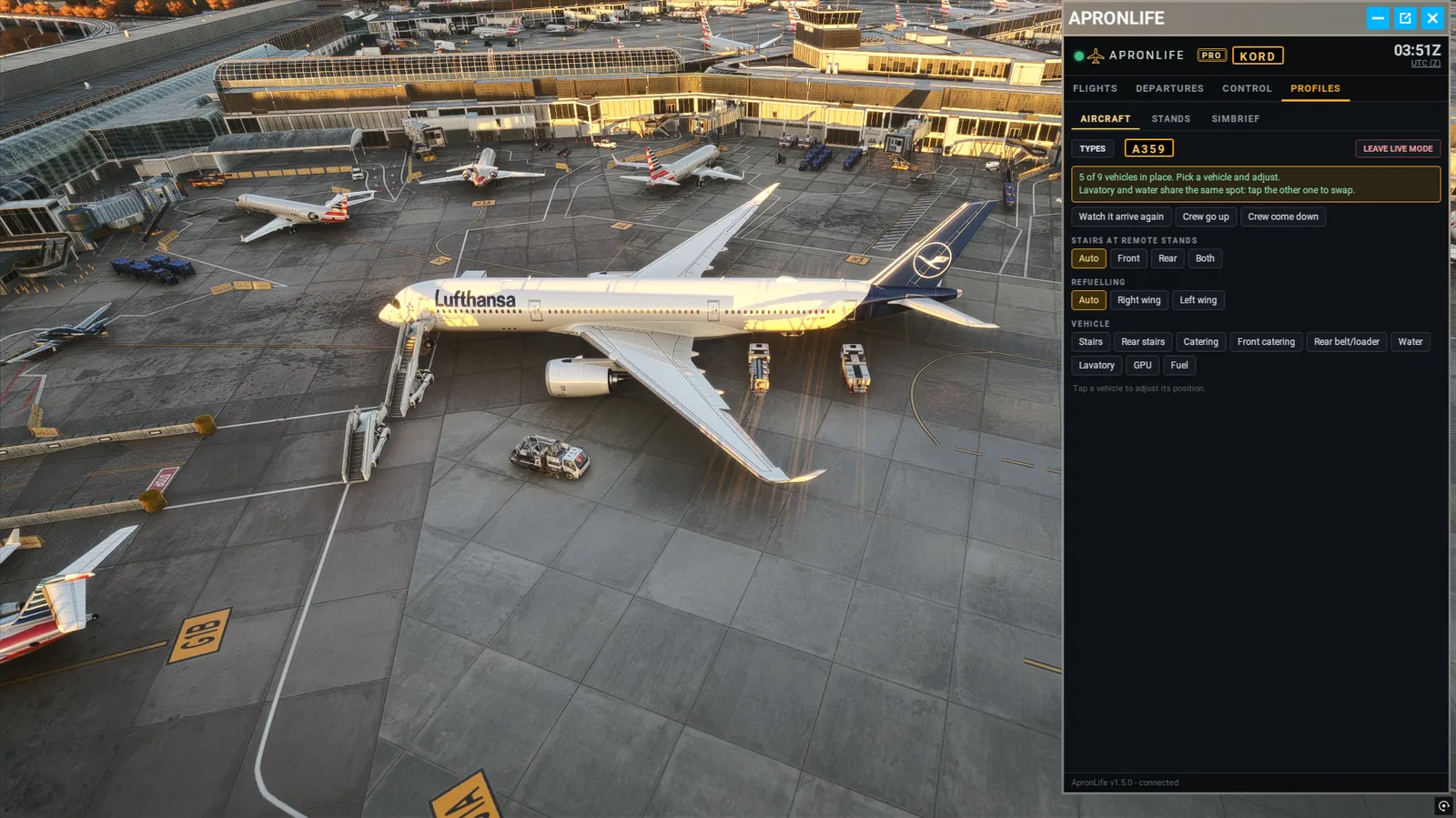
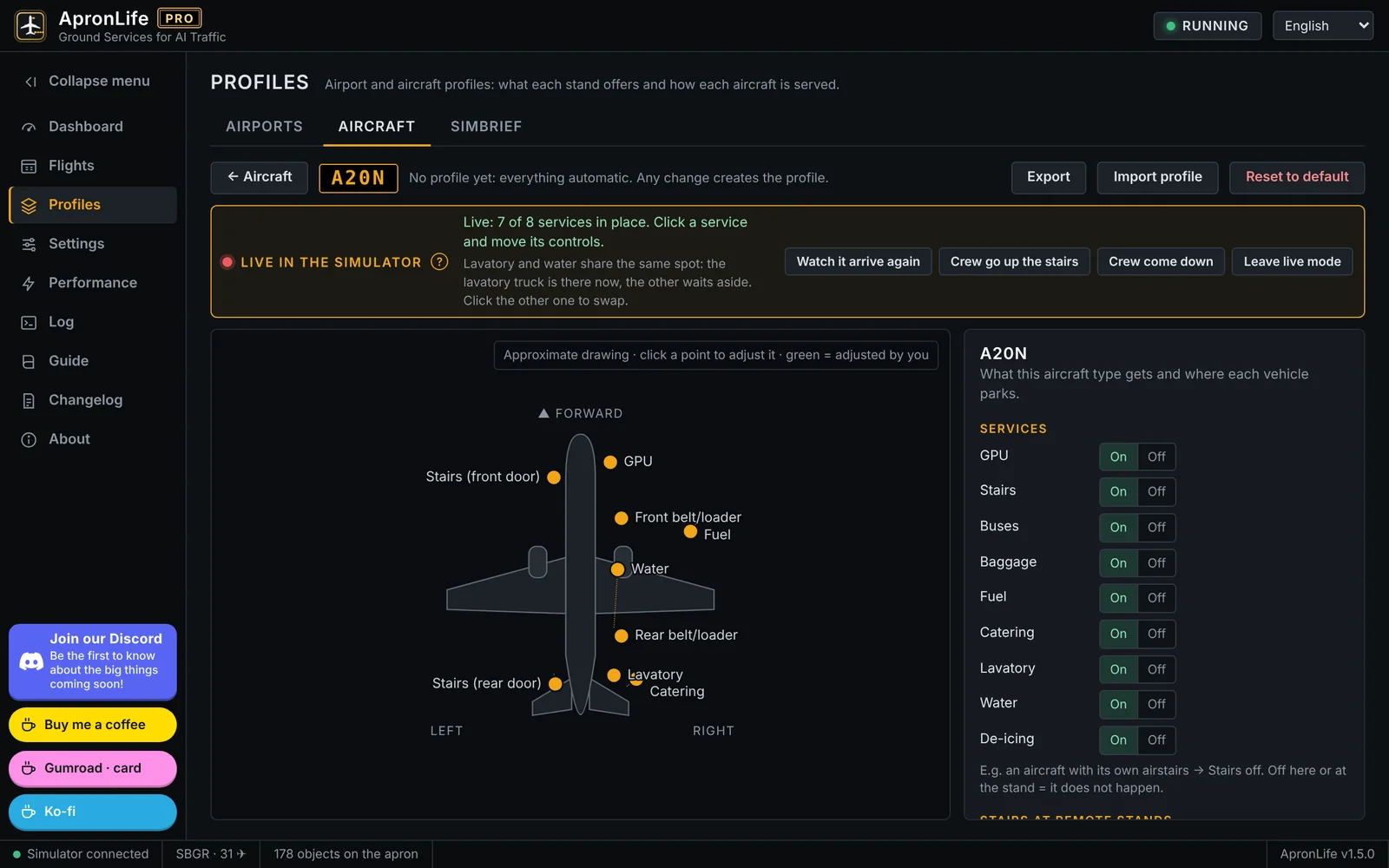
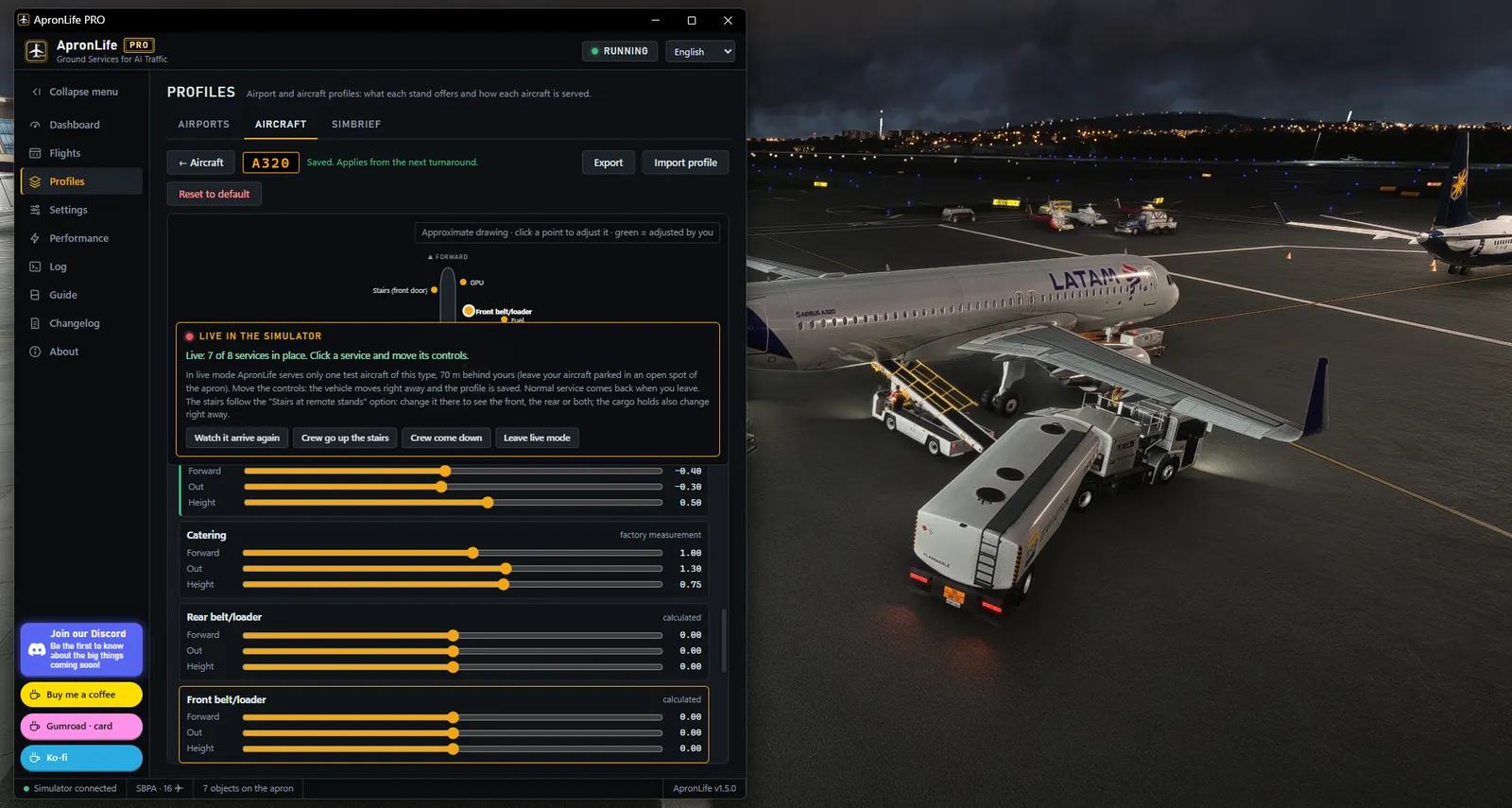
The PROFILES tab of the in-sim panel has the same Studio in a smaller size. Open a type, turn on LIVE and nudge each vehicle until it sits right at the door.
The real PROFILES tab, with example data. Try the − and + buttons and the STANDS and SIMBRIEF tabs.
In the Studio
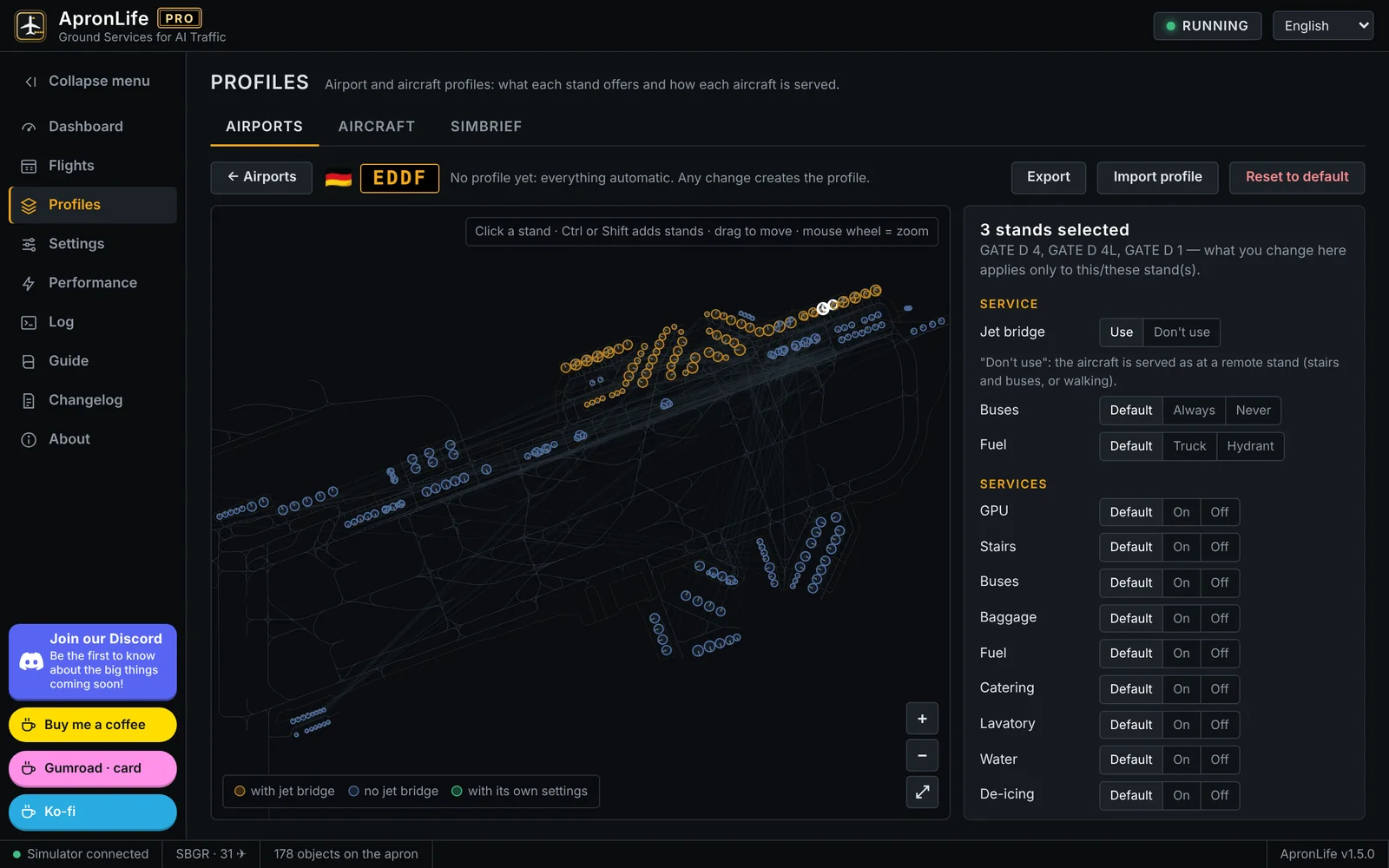
In the Profile Studio you also decide about the jet bridges, airport by airport and stand by stand.
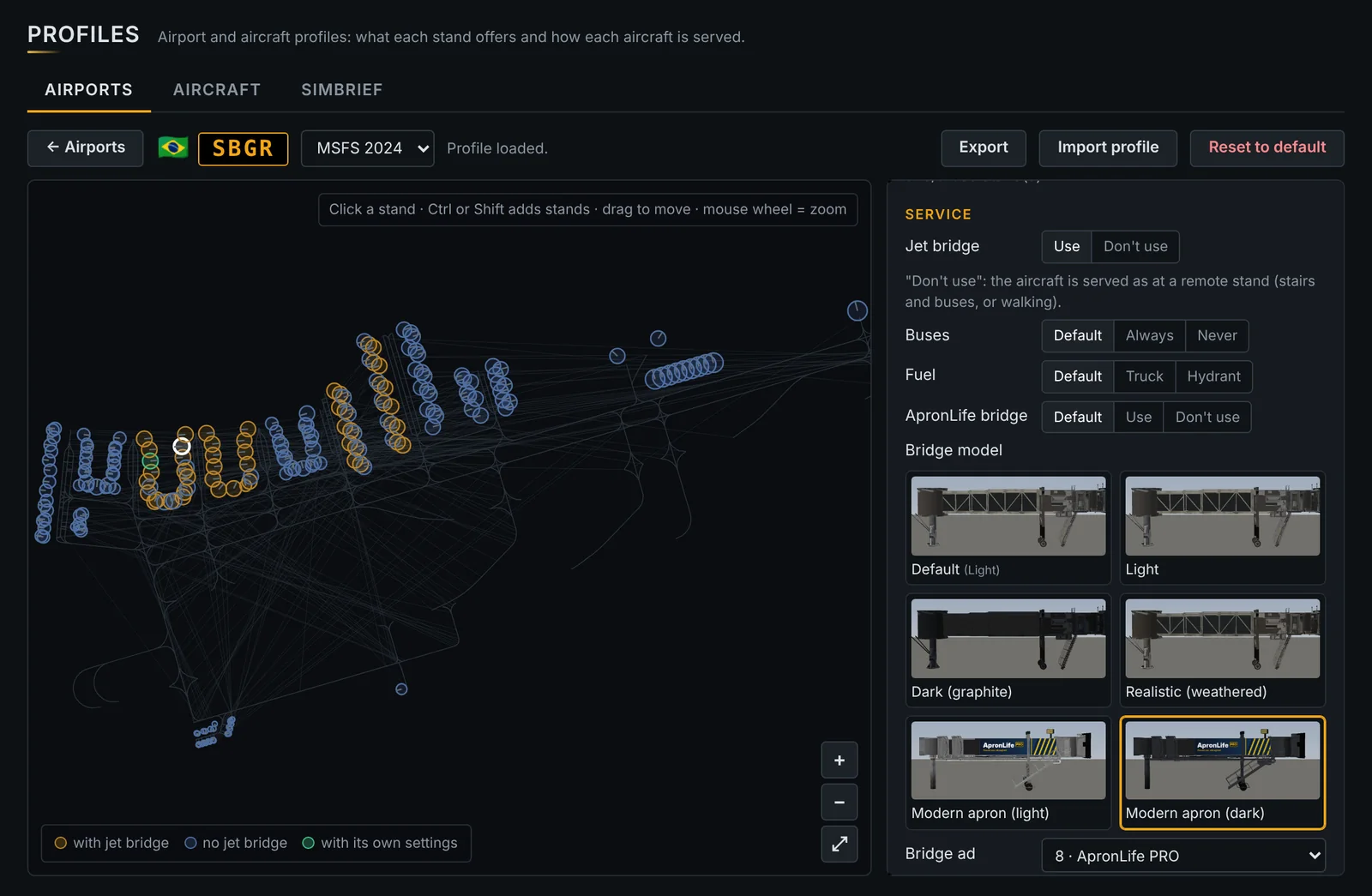
The airport map with all its stands. Pick one or several and choose the jet bridge, buses, truck or hydrant fuel, which services happen and which of your vehicles serves each one. Works with the simulator closed.
By aircraft type: which services it gets and where each vehicle parks, with forward, out, height and rotation, plus the cargo doors. A drawing of the aircraft shows every vehicle moving as you adjust.
A test aircraft of that type parks behind yours with all its ground vehicles. Every control moves the real vehicle right away, so you fit each one to the doors by eye.
Save your settings and performance for each airport: fewer vehicles at a heavy hub, everything on at a small field. When you arrive there, ApronLife loads that airport’s setup by itself, and your general settings come back everywhere else.
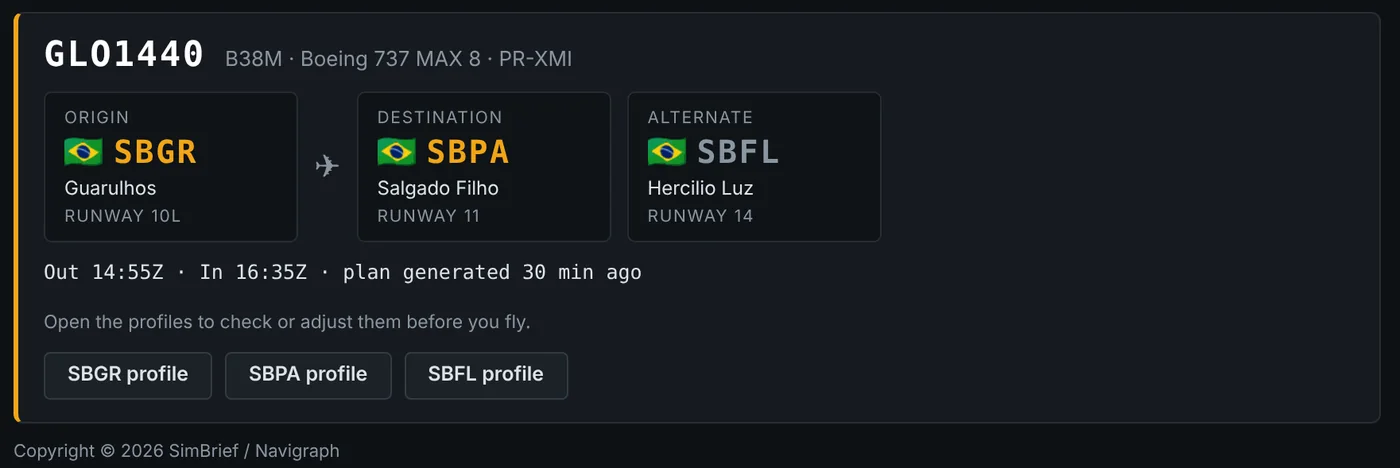
Enter your SimBrief username once. ApronLife reads your latest flight plan and shows the flight, aircraft, departure, destination and alternate, with a shortcut to the stands of your departure airport.
Copyright © 2026 SimBrief / Navigraph
Export any airport or aircraft profile as a file and import the ones friends send you, the same way GSX profiles are shared.
Also in PRO
Click an aircraft in the panel and the camera flies to it and slowly circles around, like a film shot. One click brings you back to the cockpit.
Fly the camera yourself around any aircraft from the panel: drag to circle and move up or down, wheel to zoom, one click to reset.
At remote stands, A320s, 737s and bigger get stairs at the front and rear doors, a bus for each and their own passenger lanes. Change it per aircraft type.
Airlines that refuel from the left wing, like Lufthansa, British Airways, Air France and TAP, get the truck on the left. Everyone else, on the right.
From the panel: light, medium or full; everything on, only bridges or no people; and bubble mode. Adjust to your PC without leaving the flight.
Turn the Real Schedule off whenever you prefer the classic random turnarounds, and back on with one switch.
Flight times in UTC, in the local time of the airport or in any time zone you choose.
The panel in the simulator and the Profile Studio work in both. The camera features are MSFS 2024 only.

Free or PRO
| Feature | Free | PRO |
|---|---|---|
| Full turnarounds: vehicles, baggage, passengers, crew | ||
| Jet bridges, including iniBuilds multi-bridges | ||
| Marshallers, wingwalkers and pushback | ||
| Ops cars and cones | ||
| Real Schedule | ||
| Flights tab (departures board) | ||
| ApronLife jet bridges: models, stands and your own advertising | ||
| Times in UTC, the airport’s local time or any time zone | ||
| Panel inside the simulator (MSFS 2024 and 2020) | ||
| One-click modes from the simulator panel (light, medium, full, bubble mode) | ||
| Cinematic camera | ||
| Drone view | ||
| Saved settings for each airport, loaded automatically when you arrive | ||
| Airport and aircraft profiles (Studio) | ||
| Live adjustment in the simulator | ||
| Read any airport from the simulator without flying there | ||
| Export and import profiles to share | ||
| SimBrief integration | ||
| Two stairs and two buses at remote stands | ||
| Refuelling on the right wing for each airline |
License
No subscription. Pay once and it’s yours.
A thank-you to everyone who donated to ApronLife up to October 14, 2026. The list is closed: donations after that date do not include the PRO. How to claim your license will be posted on the Discord when sales open.
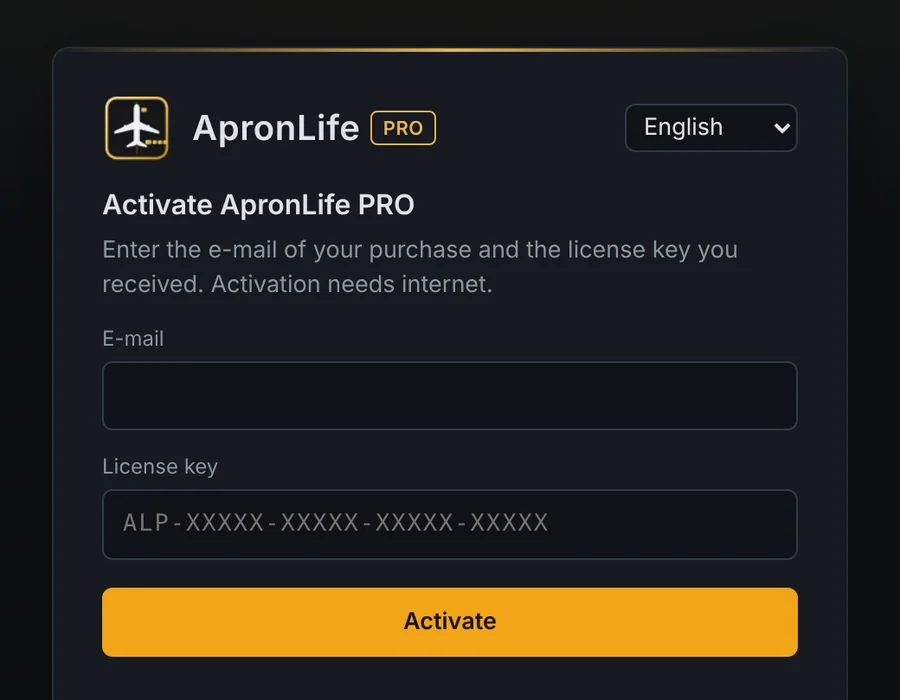
Enter the e-mail of your purchase and your license key. ApronLife confirms it online once, and the Real Schedule and updates arrive by themselves.
Questions
It is recommended. With GSX Pro you get many more vehicles and characters, taken from your own installation; nothing from GSX is included. Without it, ApronLife uses the simulator’s own vehicles: no people (drivers, ground crew, passengers) and no stairs.
Yes. In the Flights tab, choose the schedule clock: real time for live traffic like BeyondATC, or simulator time for AIG.
ApronLife works as usual there, with the same random turnarounds as the free version.
Only for the SimBrief card. Airport and aircraft profiles work the same without it.
Yes: the Real Schedule, the panel in the simulator and the Profile Studio. The cinematic camera and Drone view are MSFS 2024 only.
Yes. Every airport and aircraft profile can be exported as a file and imported on another PC.
Yes, if your donation was made up to October 14, 2026: that is the founder offer, and the list is now closed. Donations after that date still help the free version, but they do not include the PRO. How to claim your license will be posted on the Discord when sales open.
Open ApronLife PRO and enter the e-mail of your purchase and your license key. Activation needs internet; after that it works for up to 3 days offline. Changing PCs? Use “Release this PC” in the Flights tab.